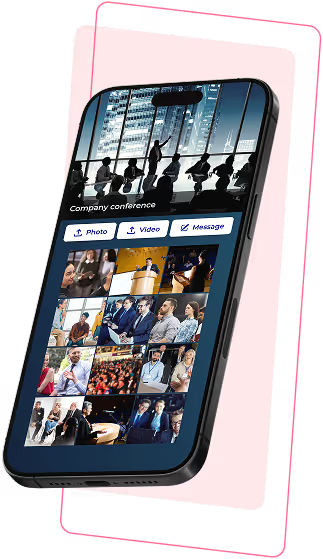
Encourage attendees to share their experiences
Step 1
Create event
Step 2
Share a QR code or link
Step 3
Guests upload photos, videos, or messages
Step 4
Display live slideshows and save your event album

Step 1
Create event
Step 2
Share a QR code or link
Step 3
Guests upload photos, videos, or messages
Step 4
Display live slideshows and save your event album

Looking for an easy activity people can join without disrupting the event flow?
How can photos and videos be collected neatly and consistently during and after the event?
And how can your internal team easily compile photos for posting, internal sharing, or reporting?
A few simple steps are all it takes to overcome these challenges.
Place the QR code around the venue so attendees can easily share content.
Each person brings a different perspective - the event album reflects everything that happened.
New content can be displayed on a large screen - perfect for conferences, workshops, or internal events.
Participants can share content during the event for later communications and reporting.
Only authorized participants can join. Content can be previewed and moderated.
Each person brings a different perspective - the event album reflects everything that happened.
New content can be displayed on a large screen - perfect for conferences, workshops, or internal events.
Participants can share content during the event for later communications and reporting.
Only authorized participants can join. Content can be previewed and moderated.
No. Guests imply scan the QR code or open the event link to participate.
No. Guests can upload content immediately after opening the link. Only the event organizer needs an account to manage the album.
You can place the QR code at the check-in area, registration desk, stage backdrop, or display it on a large screen during the event.
Yes. Only guests with the event link or QR code can access and share content.
Yes. You can preview, approve, or hide guest uploads before they appear in the album or slideshow.
Yes. You can download all photos and videos and share the digital album with guests after the event ends.
No. Guests imply scan the QR code or open the event link to participate.
No. Guests can upload content immediately after opening the link. Only the event organizer needs an account to manage the album.
You can place the QR code at the check-in area, registration desk, stage backdrop, or display it on a large screen during the event.
Yes. Only guests with the event link or QR code can access and share content.
Yes. You can preview, approve, or hide guest uploads before they appear in the album or slideshow.
Yes. You can download all photos and videos and share the digital album with guests after the event ends.
TABLE OF CONTENTS
CONTACT
support@knipsly.com
Some illustrations on this site are designed by Freepik